LAYER RECOVERY
Painted on the Wrong Minecraft Skin Layer? Undo, Switch, and Redraw
Short answer: if the wrong stroke is your latest action, use Undo first. Then select the intended Body or Overlay pass, confirm the Selected readout, and redraw the pixels once. If you continued drawing after the mistake, protect the later work before undoing several steps.
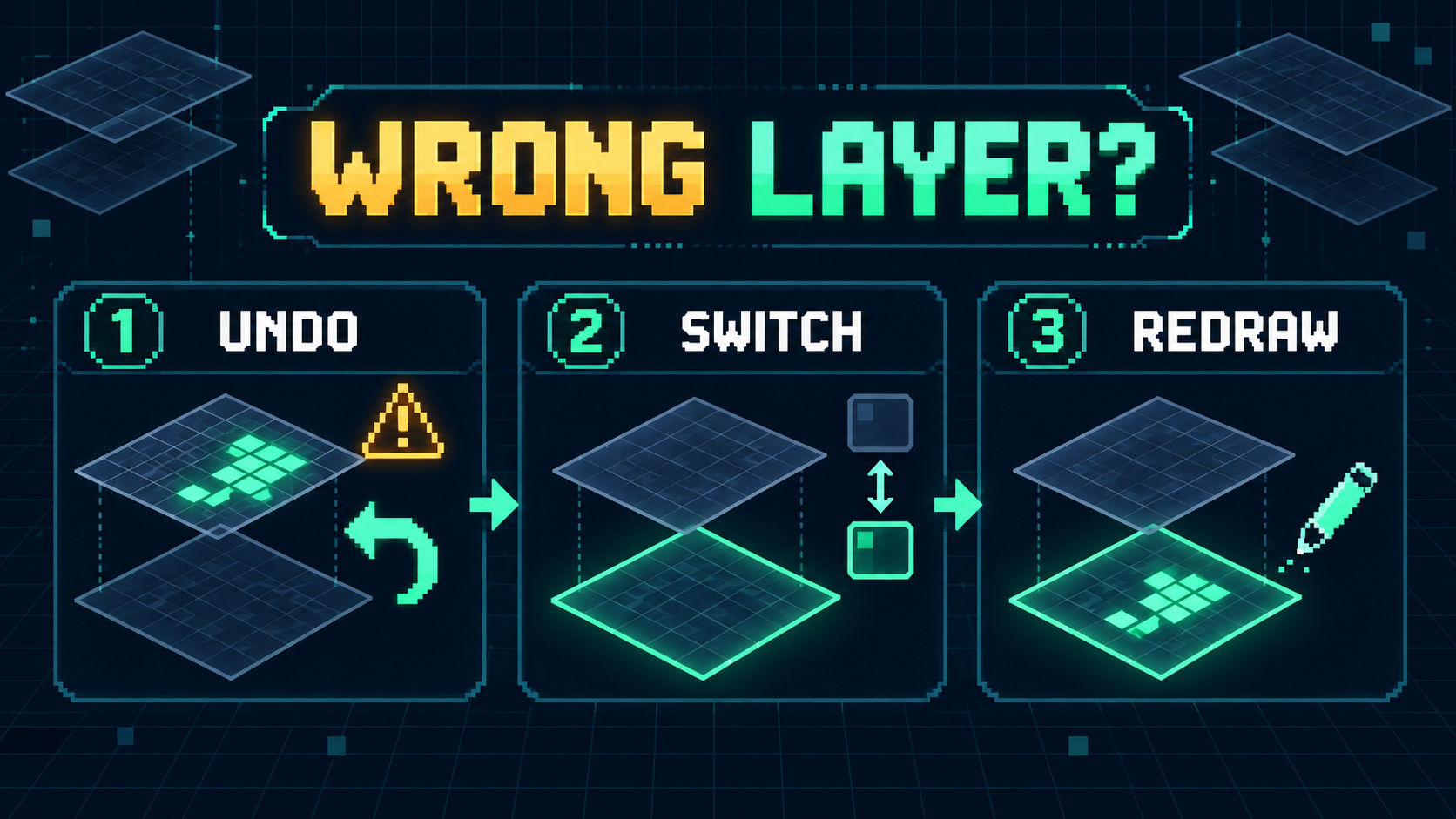
What should I do if I painted on the wrong Minecraft skin layer?
First decide whether the mistake is still the most recent action. That determines the safest recovery path. Body and Overlay are separate drawing passes in this editor, and the existing pixels are not automatically moved from one pass to the other.
Use the matching situation below instead of clearing an entire layer or painting the same detail twice.
If the wrong stroke was your last action
- Press Undo once and check that only the mistaken stroke disappears.
- Select the intended Body or Overlay pass.
- Confirm the Selected readout matches that pass.
- Redraw the stroke once in the same mapped region.
Why this is safest: it removes the mistake before a duplicate can remain hidden on the other pass.
If you kept drawing after the mistake
Do not hold Undo without watching the canvas. Each Undo can remove a later action you want to keep. Step backward one action at a time, compare the texture after each step, and stop as soon as the misplaced stroke is gone.
If undoing would discard too much later work, leave the history intact. Select the wrong pass, use Eraser only on the misplaced pixels, switch to the intended pass, confirm Selected, and redraw the detail there.
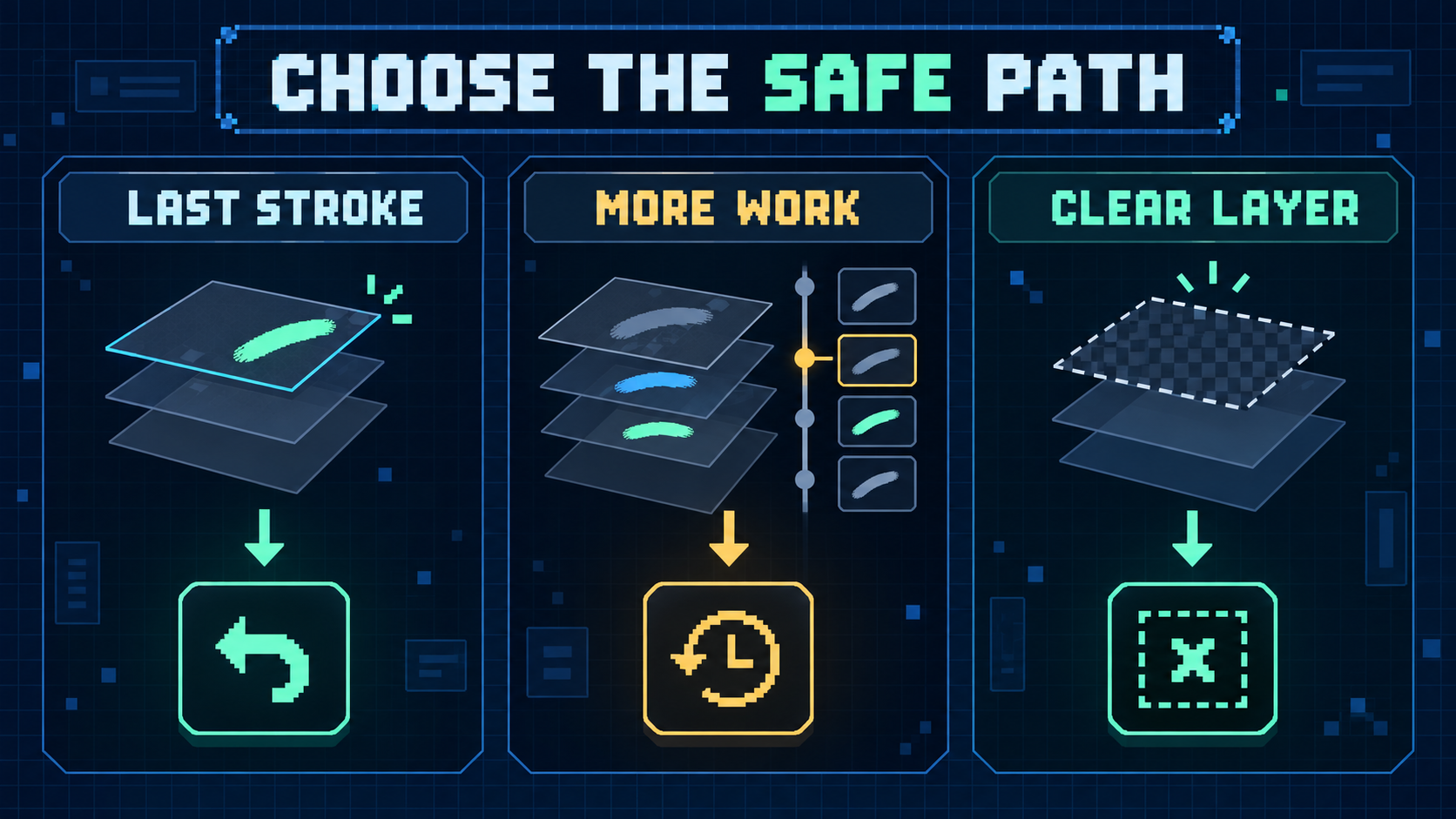
If you used Clear layer by mistake
Stop drawing immediately and use Undo. Clear layer affects the currently selected pass, so adding another stroke first makes the recovery sequence longer. After the pixels return, check Body and Overlay separately before continuing.
If Undo no longer restores the cleared pass, this editor does not provide an automatic cross-layer transfer. Reopen your last saved PNG if you have one, or rebuild only the missing pass from your reference.
How to avoid the same layer mistake
- Choose Body for the base colors and Overlay for raised details.
- Read the Selected status before the first stroke in a new area.
- Turn on Pixel grid and increase Zoom for precise cleanup.
- Review Body and Overlay separately before downloading.
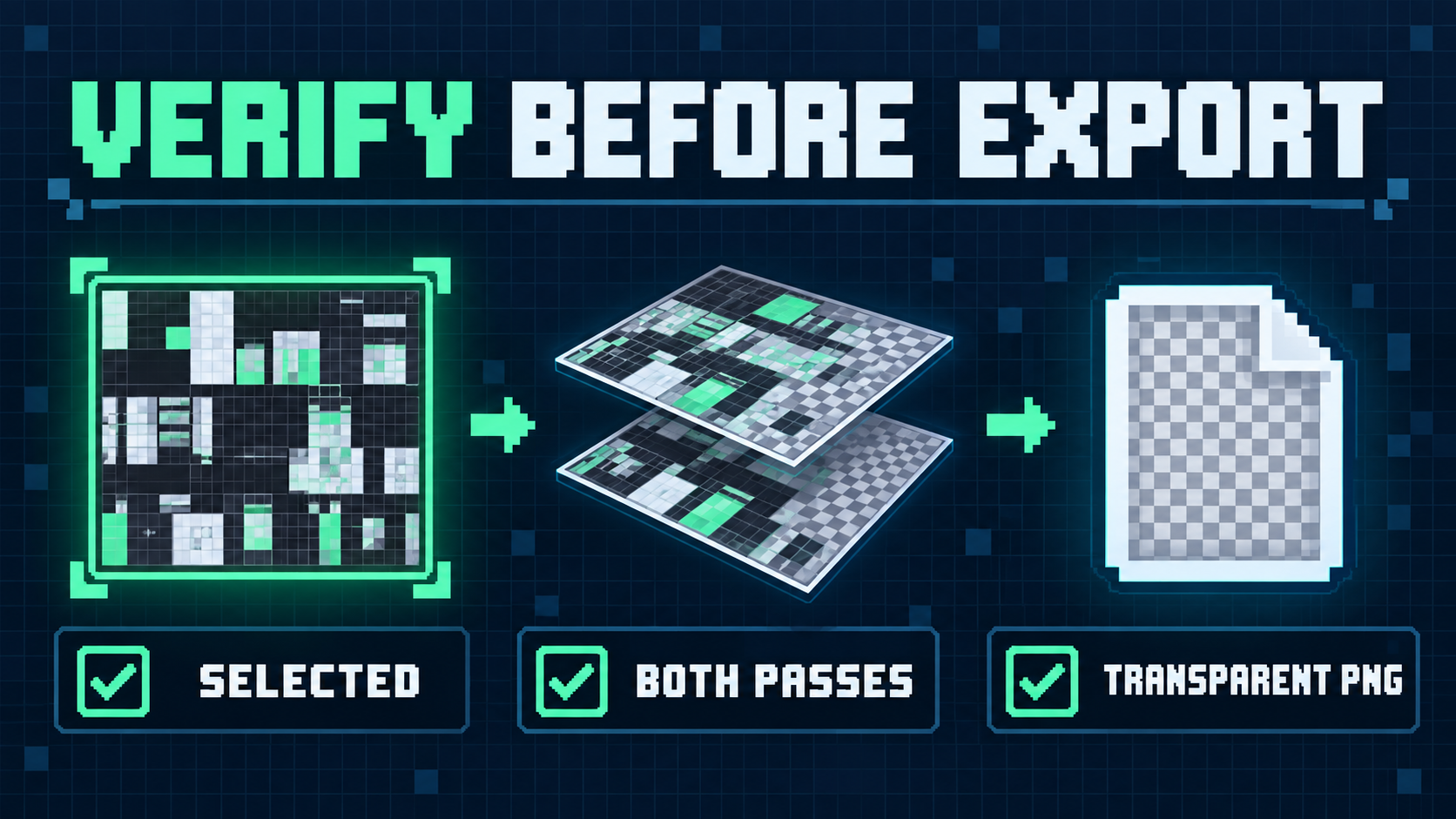
Final recovery check
Toggle between Body and Overlay and confirm the corrected detail appears only where you intended. Zoom out for a whole-texture review, then use Download PNG. The editor exports the current square canvas as a transparent PNG.
Still unsure which pass should hold the detail? Read Body vs Overlay Layers. If a detail seems missing rather than misplaced, use the overlay troubleshooting checklist.