OVERLAY TROUBLESHOOTING
Minecraft Skin Overlay Not Showing? 5 Checks Before You Redraw
Short answer: do not redraw yet. First confirm that Overlay is active and the Selected readout says Overlay. Then zoom in with Pixel grid, use Undo if the last action removed the detail, and review both Body and Overlay before exporting.
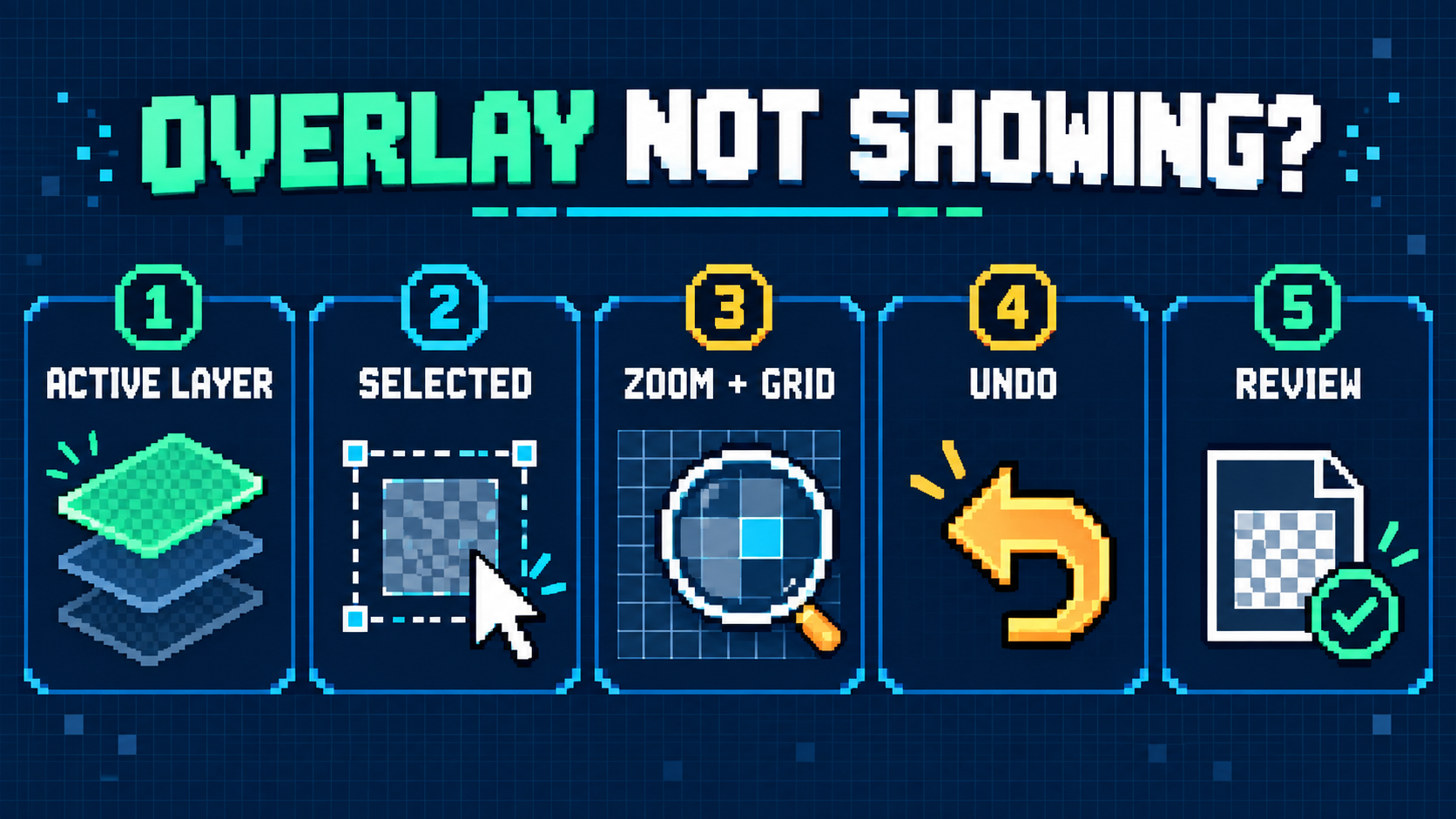
Why is my Minecraft skin overlay not showing?
In this editor, Body and Overlay are separate drawing passes. A detail can seem missing when the other pass is active, when you are inspecting the wrong mapped region, or when the detail is too small to spot at the current zoom. An Undo or Clear layer action may also have removed it from the selected pass.
Work through these checks in order. Each one uses a visible editor control, so you can diagnose the state before replacing any pixels.
1. Confirm that Overlay is the active layer
Look at the Body / Overlay control before touching the canvas. Select Overlay, then confirm that the Selected readout also says Overlay. The toggle and the readout should agree.
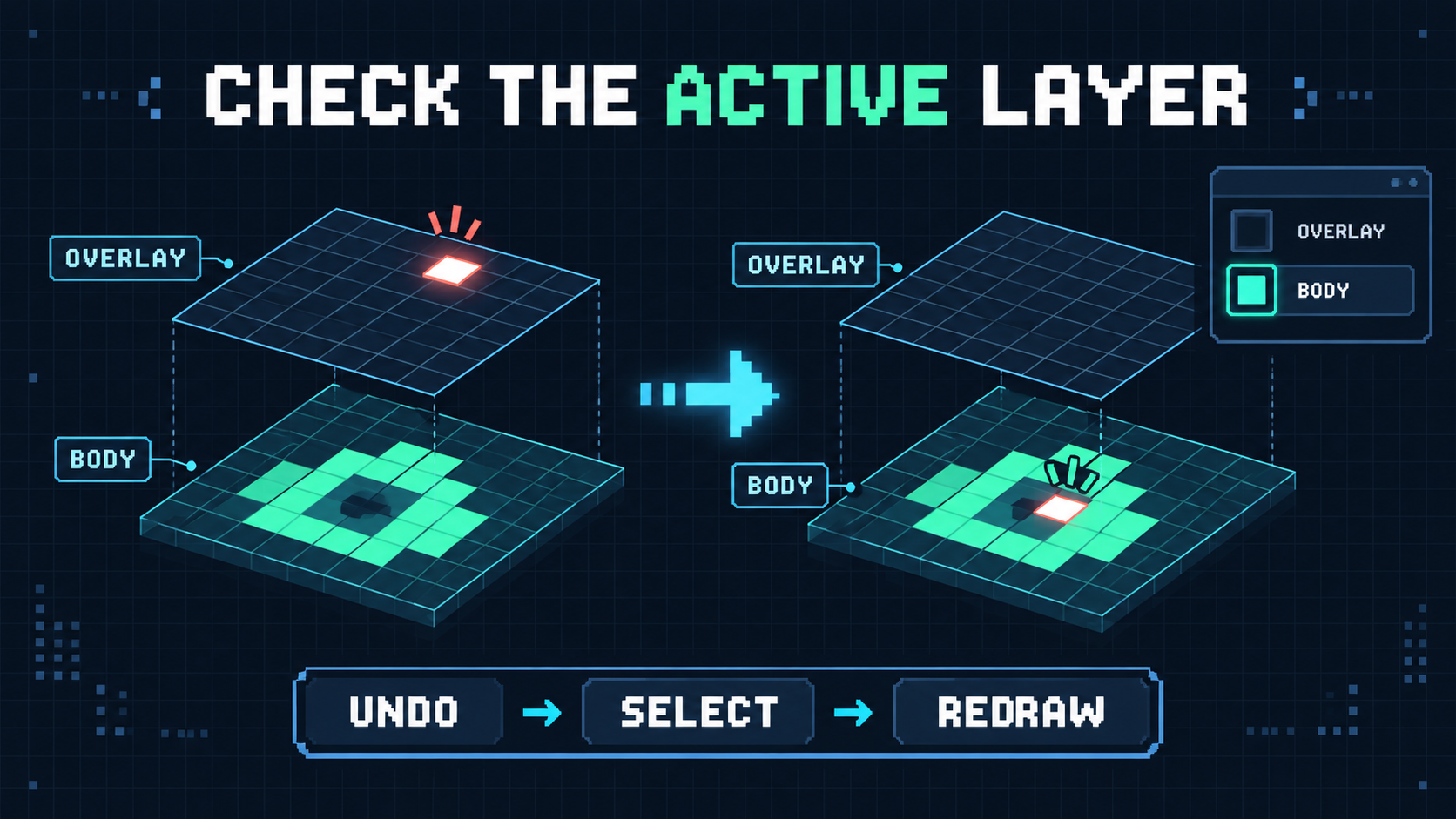
Safe fix: if the last stroke landed on Body, use Undo, select Overlay, and redraw it once. Do not paint over the mistake on a second layer.
2. Check the mapped region you are editing
A skin texture is a flat grid containing separate mapped regions. Move to the region where you placed the overlay detail rather than scanning the entire canvas. If you are unsure which pixel you changed, use Undo and Redo to compare the canvas before and after the edit.
3. Zoom in and switch on Pixel grid
Small marks are easy to miss when the whole texture is shown at once. Increase Zoom, enable Pixel grid, and inspect the edges of the intended region. The grid makes a one-pixel gap or misplaced mark easier to locate without changing the image.
4. Recover the most recent removal with Undo
If the detail disappeared after Eraser or Clear layer, stop drawing and use Undo. Clear layer affects the currently selected layer, so check the Selected readout again before making another change.
5. Review both passes before export
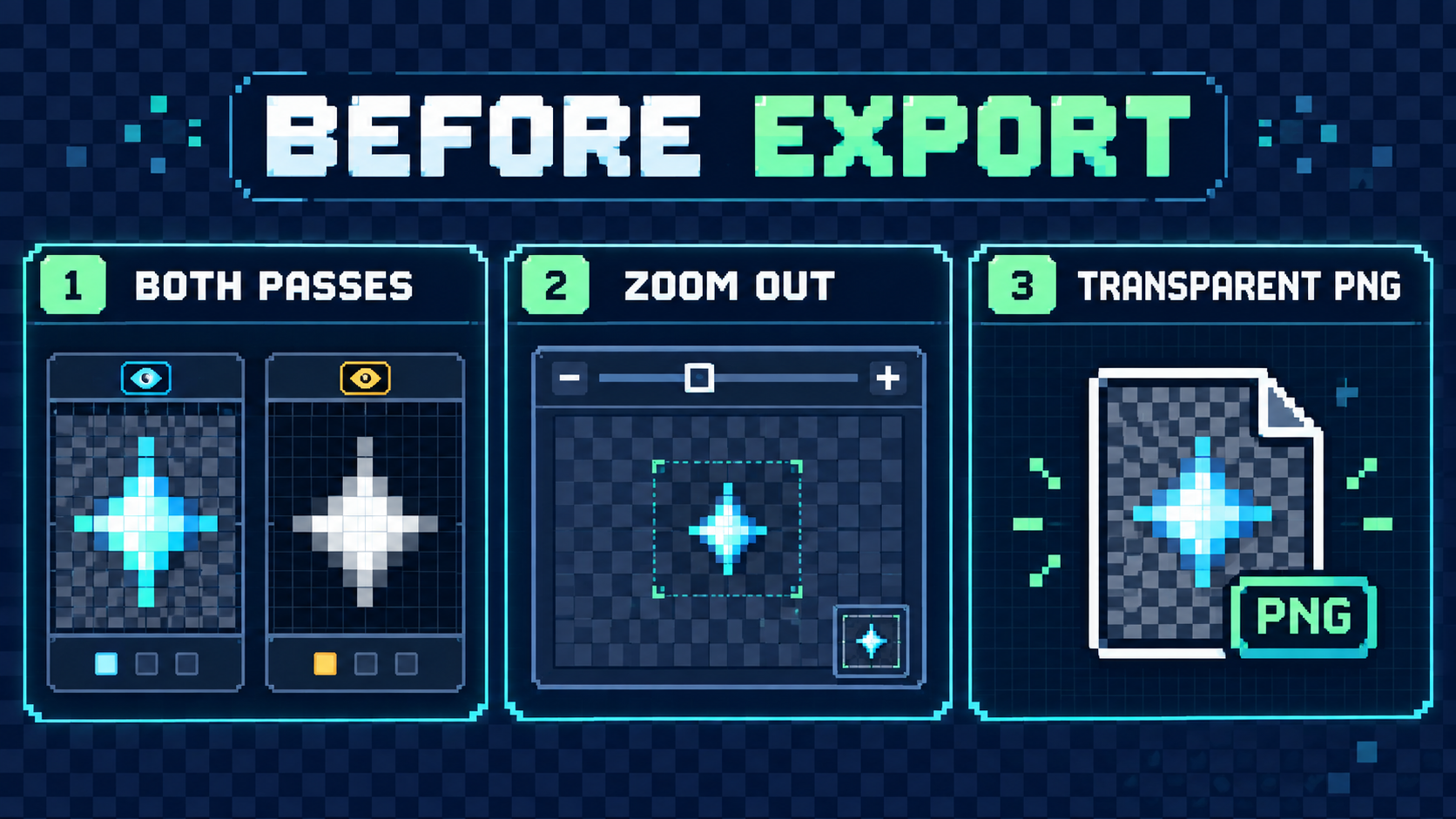
Inspect Body and Overlay separately, then zoom out for a final whole-texture check. Export only after the detail appears in the intended pass. The editor downloads the current square canvas as a transparent PNG.
Fast overlay recovery checklist
- Select Overlay.
- Verify the Selected readout.
- Increase Zoom and enable Pixel grid.
- Use Undo if Eraser or Clear layer removed the detail.
- Review both passes, then export the transparent PNG.